Loading...
Loading...
Loading...
Loading...
Loading...
Loading...
Loading...
Loading...
Loading...
Loading...
This space contains various examples explaining how users can modify the ReXgen XML configuration for various use cases.
For more details on these examples, visit our GitHub.
GNSS to CAN
GNSS to CAN_SD
ADC to CAN
ADC to CAN_SD
IMU to CAN
IMU to CAN_SD
RTC data to CAN
Gateway CAN0 Signal to CAN1
Gateway Routing CAN0 to CAN1.
In this example, we will see how to configure a ReXgen data logger to transmit the GNSS positioning data over the CAN Bus and record the GNSS data in the internal storage.
Latitude Longitude Altitude Speed Over Ground Ground Distance Course Over Ground Number Of Satellites Quality
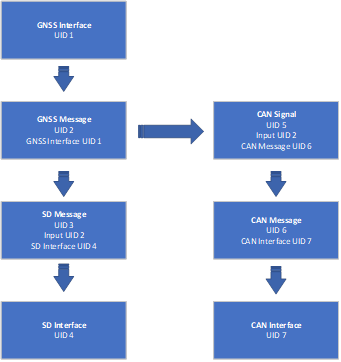
The image below shows how each element is linked in the XML file.
They are connected using Unique IDs (UID).
CAN Baud Rate: 500 Kbps
GNSS Sampling Rate: 100ms
CAN ID For various signals:
0x12B – Altitude, GPS Speed
0x12C – Longitude, Latitude
0x12D – Ground Distance
0x12E – Number Of Satellites, Course
0x12F - Quality
Example DBC provided with XML.
Modifying CAN Bus Channel:
Edit the value of the PhysicalNumber element in the XML file under the CAN interface block. 0 for CAN 0, 1 for CAN 1, 2 for CAN 2 and 3 for CAN 3
Modifying CAN Baud Rate:
Edit the value of the CANBusSpeed element in the XML file under the CAN interface block. Value has to be specified in bps
Modifying GNSS Sampling Rate:
Edit the value of the SamplingRate element under the GNSSINTERFACE Block
Value has to be specified in milliseconds
Modifying the CAN Identifier for the messages:
Edit the values of MessageIdentStart and MessageIdentEnd Elements under the CANMESSAGE block for the message you wish to edit. Please note that the example DBC will be invalid after this change.
Value has to be entered in Decimal
Modifying the CAN Message transmission period:
Edit the values of Period Elements under the CANMESSAGE block for the message you wish to edit.
Value has to be entered in milliseconds
The process to send XML to logger using ReXdesk. Click on Config Menu > Run > Run Config Using External File > Browse the XML file and click Open.
This example explains configuring a ReXgen data logger to transmit the ADC data over the CAN Bus.
ADC 0 ADC 1
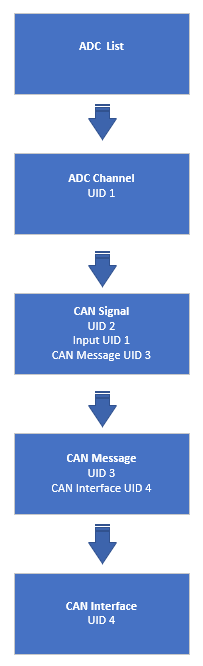
The below image shows how each element are linked in the XML file.
They are connected using Unique IDs (UID).
CAN Baud Rate: 500 Kbps
CAN ID For various signals:
0x12A – ADC 0 & ADC 1
Example DBC provided with XML.
Modifying CAN Bus Channel:
Edit the value of the PhysicalNumber element in the XML file under the CAN interface block. 0 for CAN 0, 1 for CAN 1, 2 for CAN 2 and 3 for CAN 3
Modifying CAN Baud Rate:
Edit the value of CANBusSpeed element in the XML file under the CAN interface block. Value has to be specified in bps
Modifying ADC Sampling Rate:
Edit the value of SamplingRate element under the ADC list Block Value has to be specified in milliseconds
Specifying the ADC Factor and Offset:
Par A specifies the Factor, and Par B specifies the Offset.
Modifying the CAN Message transmission period:
Edit the values of MessageIdentStart and MessageIdentEnd Elements under the CANMESSAGE block for the message you wish to edit. Please note that the example DBC will be invalid after this change.
Value has to be entered in Decimal
Modifying the CAN Message transmission period:
Edit the values of Period Elements under the CANMESSAGE block for the message you wish to edit. Value has to be entered in milliseconds
Process to send XML to logger using ReXdesk. Click on Config Menu > Run > Run Config Using External File > Browse the XML file and click Open
<CANINTERFACE UID="4">
        <Type>CAN</Type>
        <PhysicalNumber>0</PhysicalNumber>
        <CANBusSpeed>500000</CANBusSpeed>
        <CANFDBusSpeed>8000000</CANFDBusSpeed>
<CANFDNonISO>false</CANFDNonISO><CANINTERFACE UID="4">
<Type>CAN</Type>
<PhysicalNumber>0</PhysicalNumber>
<CANBusSpeed>500000</CANBusSpeed>
<CANFDBusSpeed>8000000</CANFDBusSpeed>
<CANFDNonISO>false</CANFDNonISO><ADC UID="2">
<PhysicalNumber>0</PhysicalNumber>
<Rate>100</Rate>
<ParA>1<ParA>
<ParB>0<ParB>
</ADC>
<ADC UID="6">
<PhysicalNumber>0</PhysicalNumber>
<Rate>100</Rate>
<ParA>1<ParA>
<ParB>0<ParB>
</ADC><CANMESSAGE_LIST>
<CANMESSAGE UID="36">
<MessageIdentStart>299</MessageIdentStart>
<MessageIdentEnd>299</MessageIdentEnd>
<Direction>OutputPeriodic</Direction>
<DLC>8</DLC>
<IsExtended>false</IsExtended>
<CANMESSAGE_LIST>
<CANMESSAGE UID="36">
<MessageIdentStart>299</MessageIdentStart>
<MessageIdentEnd>299</MessageIdentEnd>
<Direction>OutputPeriodic</Direction>
<DLC>8</DLC>
<IsExtended>false</IsExtended>
<InterfaceUID>4</InterfaceUID>
<Period>100</Period><CANINTERFACE UID="2">
<Type>CAN</Type>
<PhysicalNumber>0</PhysicalNumber>
<CANBusSpeed>500000</CANBusSpeed>
<CANFDBusSpeed>8000000</CANFDBusSpeed>
<CANFDNonISO>false</CANFDNonISO><CANINTERFACE UID="2">
<Type>CAN</Type>
<PhysicalNumber>0</PhysicalNumber>
<CANBusSpeed>500000</CANBusSpeed>
<CANFDBusSpeed>8000000</CANFDBusSpeed>
<CANFDNonISO>false</CANFDNonISO><GNSSINTERFACE UID="3">
<PhysicalNumber>0</PhysicalNumber>
<SamplingRate>100</SamplingRate>
</GNSSINTERFACE><CANMESSAGE_LIST>
<CANMESSAGE UID="4">
<MessageIdentStart>299</MessageIdentStart>
<MessageIdentEnd>299</MessageIdentEnd>
<Direction>OutputPeriodic</Direction>
<DLC>8</DLC>
<IsExtended>false</IsExtended><CANMESSAGE_LIST>
<CANMESSAGE UID="4">
<MessageIdentStart>299</MessageIdentStart>
<MessageIdentEnd>299</MessageIdentEnd>
<Direction>OutputPeriodic</Direction>
<DLC>8</DLC>
<IsExtended>false</IsExtended>
<InterfaceUID>4</InterfaceUID>
<Period>100</Period>In this example, we will see how we can configure a ReXgen data logger to route all the CAN traffic from CAN 0 Bus to CAN 1 Bus
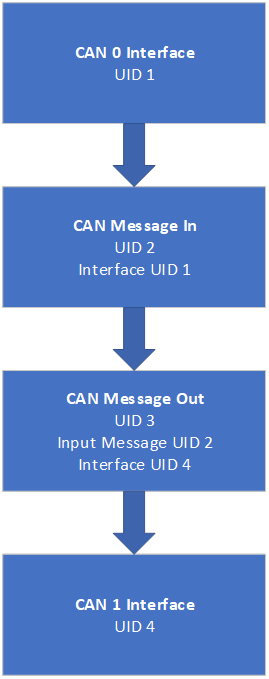
The below image shows how each element is linked in the XML file.
They are connected using Unique IDs (UID).
CAN Baud Rate: 500 Kbps
All CAN IDs are Routed
Modifying CAN Bus Channel:
Edit the value of the CANBusSpeed element in the XML file under the CAN interface block.
Value has to be specified in bps
The process sends XML to the logger using ReXdesk. Click on Config Menu > Run > Run Config Using External File > Browse the XML file and click Open.
In this example, we will see how we can configure a ReXgen data logger to route all the CAN traffic from CAN 0 Bus to CAN 1 Bus
Below image shows how each element are linked in the XML file.
They are connected using Unique IDs (UID).
CAN Baud Rate: 500 Kbps
All CAN IDs are Routed
Edit the value of the CANBusSpeed element in the XML file under the CAN interface block. Value has to be specified in bps
The process to send XML to logger using ReXdesk. Click on Config Menu > Run > Run Config Using External File > Browse the XML file and click Open.
<CANINTERFACE UID="4">
        <Type>CAN</Type>
        <PhysicalNumber>0</PhysicalNumber>
        <CANBusSpeed>500000</CANBusSpeed>
        <CANFDBusSpeed>8000000</CANFDBusSpeed>
<CANFDNonISO>false</CANFDNonISO><CANINTERFACE UID="4">
<Type>CAN</Type>
<PhysicalNumber>0</PhysicalNumber>
<CANBusSpeed>500000</CANBusSpeed>
<CANFDBusSpeed>8000000</CANFDBusSpeed>
<CANFDNonISO>false</CANFDNonISO>This example shows how we can configure a ReXgen data logger to transmit the GNSS positioning data over the CAN Bus.
Easily inject real-time location information into your CAN Bus.
Feed real-time location information to your CAN Dashboard or Instrument Cluster.
Use ReXgen as a GNSS module for your existing CAN data logger.
Latitude
Longitude
Altitude
Speed Over Ground
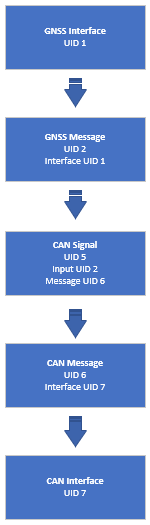
The below image shows how each element is linked in the XML file.
They are connected using Unique IDs (UIDs).
CAN Baud Rate: 500 Kbps
GNSS Sampling Rate: 100ms
CAN ID For various signals:
0x12B – Altitude, GPS Speed
Modifying CAN Bus Channel:
Edit the value of the PhysicalNumber element in the XML file under the CAN interface block. 0 for CAN 0, 1 for CAN 1, 2 for CAN 2 and 3 for CAN 3
Modifying CAN Baud Rate:
Edit the value of the CANBusSpeed element in the XML file under the CAN interface block. Value has to be specified in bps
Modifying GNSS Sampling Rate:
Edit the value of the SamplingRate element under the GNSSINTERFACE Block Value has to be specified in milliseconds
Modifying the CAN Identifier for the messages:
noteEdit the values of MessageIdentStart and MessageIdentEnd Elements under the CANMESSAGE block for the message you wish to edit. Please not that the example DBC will be invalid after this change.
Value has to be entered in Decimal
Modifying the CAN Message transmission period:
Edit the values of Period Elements under the CANMESSAGE block for the message you wish to edit.
Value has to be entered in milliseconds
The process to send XML to logger using ReXdesk. Click on Config Menu > Run > Run Config Using External File > Browse the XML file and click Open.
This example shows configuring a ReXgen data logger to transmit IMU data over the CAN Bus.
Accelerometer X Accelerometer Y Accelerometer Z
Gyroscope X Gyroscope Y Gyroscope Z
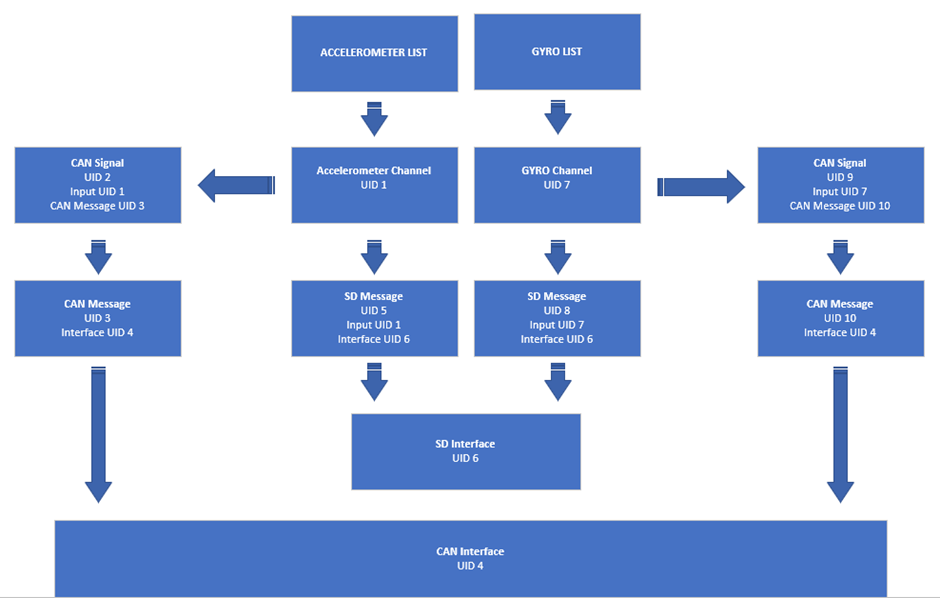
The below image shows how each element is linked in the XML file.
They are connected using Unique IDs (UID).
CAN Baud Rate: 500 Kbps
Ground Distance
Course Over Ground
Number Of Satellites
Quality
0x12C – Longitude, Latitude
0x12D – Ground Distance
0x12E – Number Of Satellites, Course
0x12F - Quality Example DBC provided with XML.
<CANINTERFACE UID="1">
<Type>CAN</Type>
<PhysicalNumber>0</PhysicalNumber>
<CANBusSpeed>500000</CANBusSpeed>
<CANFDBusSpeed>8000000</CANFDBusSpeed>
<CANFDNonISO>false</CANFDNonISO><CANINTERFACE UID="1">
<Type>CAN</Type>
<PhysicalNumber>0</PhysicalNumber>
<CANBusSpeed>500000</CANBusSpeed>
<CANFDBusSpeed>8000000</CANFDBusSpeed>
<CANFDNonISO>false</CANFDNonISO><GNSSINTERFACE UID="2">
<PhysicalNumber>0</PhysicalNumber>
<SamplingRate>100</SamplingRate>
</GNSSINTERFACE>
<CANMESSAGE_LIST>
<CANMESSAGE UID="3">
<MessageIdentStart>299</MessageIdentStart>
<MessageIdentEnd>299</MessageIdentEnd>
<Direction>OutputPeriodic</Direction>
<DLC>8</DLC>
<IsExtended>false</IsExtended><CANMESSAGE_LIST>
<CANMESSAGE UID="3">
<MessageIdentStart>299</MessageIdentStart>
<MessageIdentEnd>299</MessageIdentEnd>
<Direction>OutputPeriodic</Direction>
<DLC>8</DLC>
<IsExtended>false</IsExtended>
<InterfaceUID>4</InterfaceUID>
<Period>100</Period>ADC Sampling Rate: 100ms
CAN ID For various signals:
0x128 – Accelerometer
0x129 – Gyroscope
Example DBC provided with XML.
Modifying CAN Bus Channel:
Edit the value of the PhysicalNumber element in the XML file under the CAN interface block. 0 for CAN 0, 1 for CAN 1, 2 for CAN 2 and 3 for CAN 3
Modifying CAN Baud Rate:
Edit the value of CANBusSpeed element in the XML file under the CAN interface block.
Value has to be specified in bps
Modifying Accelerometer Sampling Rate:
Edit the value of SamplingRate element under the ACCELEROMETER list Block.
Value has to be specified in milliseconds
Modifying Gyroscope Sampling Rate:
Edit the value of the SamplingRate element under the GYRO LIST Block
Value has to be specified in milliseconds
Modifying Accelerometer High Low Range:
Edit the value of the SamplingRate element under the ACCELEROMETER LIST Block
Value has to be specified in milliseconds
Modifying Gyroscope Sampling Rate:
Edit the value of the SamplingRate element under the GYRO LIST Block
Value has to be specified in milliseconds
Modifying the CAN Identifier for the messages:
Edit the values of MessageIdentStart and MessageIdentEnd Elements under the CANMESSAGE block for the message you wish to edit. Please note that the example DBC will be invalid after this change.
Value has to be entered in Decimal
Modifying the CAN Message transmission period:
Edit the values of Period Elements under the CANMESSAGE block for the message you wish to edit.
Value has to be entered in milliseconds
The process to send XML to logger using ReXdesk. Click on Config Menu > Run > Run Config Using External File > Browse the XML file and click Open.

<CANINTERFACE UID="4">
<Type>CAN</Type>
<PhysicalNumber>0</PhysicalNumber>
<CANBusSpeed>500000</CANBusSpeed>
<CANFDBusSpeed>8000000</CANFDBusSpeed>
<CANFDNonISO>false</CANFDNonISO><CANINTERFACE UID="4">
<Type>CAN</Type>
<PhysicalNumber>0</PhysicalNumber>
<CANBusSpeed>500000</CANBusSpeed>
<CANFDBusSpeed>8000000</CANFDBusSpeed>
<CANFDNonISO>false</CANFDNonISO><ACCELEROMETER UID="4">
<PhysicalNumber>0</PhysicalNumber>
<Axis>X</Axis>
<SamplingRate>10</SamplingRate><GYRO UID="7">
<PhysicalNumber>0</PhysicalNumber>
<Axis>X</Axis>
<SamplingRate>10</SamplingRate><ACCELEROMETER UID="6">
<PhysicalNumber>0</PhysicalNumber>
<Axis>Z</Axis>
<SamplingRate>10</SamplingRate>
<RangeHi>16</RangeHi>
<RangeLow>-16</RangeLow>
</ACCELEROMETER><GYRO UID="7">
<PhysicalNumber>0</PhysicalNumber>
<Axis>X</Axis>
<SamplingRate>10</SamplingRate>
<RangeHi>500</RangeHi>
<RangeLow>-500</RangeLow>
</GYRO><CANMESSAGE_LIST>
<CANMESSAGE UID="36">
<MessageIdentStart>299</MessageIdentStart>
<MessageIdentEnd>299</MessageIdentEnd>
<Direction>OutputPeriodic</Direction>
<DLC>8</DLC>
<IsExtended>false</IsExtended><CANMESSAGE_LIST>
<CANMESSAGE UID="36">
<MessageIdentStart>299</MessageIdentStart>
<MessageIdentEnd>299</MessageIdentEnd>
<Direction>OutputPeriodic</Direction>
<DLC>8</DLC>
<IsExtended>false</IsExtended>
<InterfaceUID>4</InterfaceUID>
<Period>100</Period>In this example, we will see how we can configure a ReXgen data logger to transmit the ADC data over the CAN Bus and record the ADC data in the internal storage.
ADC 0 ADC 1
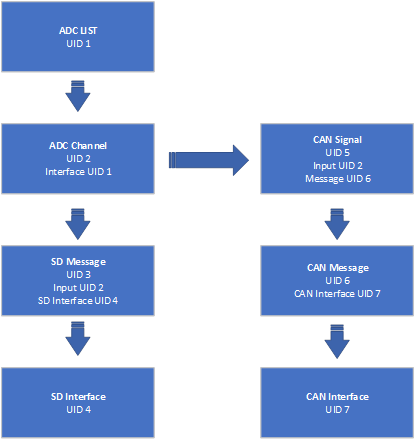
The below image shows how each element is linked in the XML file.
They are connected using Unique IDs (UID).
CAN Baud Rate: 500 Kbps
ADC Sampling Rate: 100ms
CAN ID For various signals:
0x12A – ADC 0 & ADC 1
Example DBC provided with XML.
Modifying CAN Bus Channel:
Edit the value of the PhysicalNumber element in the XML file under the CAN interface block. 0 for CAN 0, 1 for CAN 1, 2 for CAN 2 and 3 for CAN 3
Modifying CAN Baud Rate:
Edit the value of the CANBusSpeed element in the XML file under the CAN interface block. Value has to be specified in bps
Modifying ADC Sampling Rate:
Edit the value of the SamplingRate element under the ADC list. Block Value has to be specified in milliseconds
Specifying the ADC Factor and Offset:
Par A specifies the Factor, and Par B specifies the Offset.
Modifying the CAN Identifier for the messages:
Edit the values of MessageIdentStart and MessageIdentEnd Elements under the CANMESSAGE block for the message you wish to edit. Please note that the example DBC will be invalid after this change.
Value has to be entered in Decimal
Modifying the CAN Message transmission period:
Edit the values of Period Elements under the CANMESSAGE block for the message you wish to edit.
Value has to be entered in milliseconds
The process to send XML to logger using ReXdesk. Click on Config Menu > Run > Run Config Using External File > Browse the XML file and click Open.
This example shows how to configure a ReXgen data logger to transmit IMU data over the CAN Bus and record the same in eMMC storage.
Accelerometer X Accelerometer Y Accelerometer Z
Gyroscope X Gyroscope Y Gyroscope Z
The below image shows how each element is linked in the XML file.
They are connected using Unique IDs (UID).
CAN Baud Rate: 500 Kbps
The below image shows how each element is linked in the XML file.
They are connected using Unique IDs (UID).
CAN Baud Rate: 500 Kbps
Example DBC provided with XML.
Modifying MaxlogSize and MaxLogTime:
Edit the values of MaxLogSize and MaxLogTime (in seconds) Elements under the SDINTERFACE block for the message you wish to edit.
Modifying CAN Bus Channel:
Edit the value of the PhysicalNumber to change the channel number to 0, 1, 2 or 3
ADC Sampling Rate: 100ms
CAN ID For various signals:
0x128 – Accelerometer
0x129 – Gyroscope
Example DBC provided with XML.
Modifying CAN Bus Channel:
Edit the value of the PhysicalNumber element in the XML file under the CAN interface block. 0 for CAN 0, 1 for CAN 1, 2 for CAN 2 and 3 for CAN 3
Modifying CAN Baud Rate:
Edit the value of the CANBusSpeed element in the XML file under the CAN interface block.
Value has to be specified in bps
Modifying Accelerometer Sampling Rate:
Edit the value of the SamplingRate element under the ACCELEROMETER list Block.
Value has to be specified in milliseconds
Modifying Gyroscope Sampling Rate:
Edit the value of the SamplingRate element under the GYRO LIST Block
Value has to be specified in milliseconds
Modifying Accelerometer High Low Range:
Edit the value of the SamplingRate element under the ACCELEROMETER LIST Block
Value has to be specified in milliseconds
Modifying Gyroscope Sampling Rate:
Edit the value of the SamplingRate element under the GYRO LIST Block
Value has to be specified in milliseconds
Modifying the CAN Identifier for the messages:
Edit the values of MessageIdentStart and MessageIdentEnd Elements under the CANMESSAGE block for the message you wish to edit. Please note that the example DBC will be invalid after this change.
Value has to be entered in Decimal
Modifying the CAN Message transmission period:
Edit the values of Period Elements under the CANMESSAGE block for the message you wish to edit.
Value has to be entered in milliseconds
The process to send XML to logger using ReXdesk. Click on Config Menu > Run > Run Config Using External File > Browse the XML file and click Open.
Value has to be specified in bps
Modifying the CAN Message and Transmission period:
Edit the MessageIdentStart and MessageIdentEnd Elements values under the CANMESSAGE block for the message ID you wish to transmit to the RTC.
Modify the Transmission period by editing the value of the Period in the XML.
Please note that the example DBC will be invalid after this change.
Modifying the Sampling Rate:
Edit the values of the Sampling Rate under the INTERNAL_PARAMETER block for the message you wish to edit. Please note that the example DBC will be invalid after this change.
Modifying the CAN Signal:
Edit the StartBit and Bit Count Elements values under the CANSIGNAL block for the message you wish to edit. Please note that the example DBC will be invalid after this change.
The process to send XML to logger using ReXdesk. Click on Config Menu > Run > Run Config Using External File > Browse the XML file and click Open.
<SDINTERFACE_LIST>
<SDINTERFACE UID="2">
<MaxLogSize>104857600</MaxLogSize>
<MaxLogTime>3600</MaxLogTime><CANINTERFACE UID="4">
<Type>CAN</Type>
<PhysicalNumber>0</PhysicalNumber>
<CANBusSpeed>500000</CANBusSpeed>
<CANFDBusSpeed>8000000</CANFDBusSpeed>
<CANFDNonISO>false</CANFDNonISO><CANINTERFACE UID="4">
<Type>CAN</Type>
<PhysicalNumber>0</PhysicalNumber>
<CANBusSpeed>500000</CANBusSpeed>
<CANFDBusSpeed>8000000</CANFDBusSpeed>
<CANFDNonISO>false</CANFDNonISO><ADC UID="6">
<PhysicalNumber>0</PhysicalNumber>
<Rate>100</Rate>
<ParA>1<ParA>
<ParB>0<ParB>
</ADC>
<ADC UID="6">
       <PhysicalNumber>0</PhysicalNumber>
        <Rate>100</Rate>
		<ParA>1<ParA>
		<ParB>0<ParB>
</ADC><CANMESSAGE_LIST>
<CANMESSAGE UID="36">
<MessageIdentStart>299</MessageIdentStart>
<MessageIdentEnd>299</MessageIdentEnd>
<Direction>OutputPeriodic</Direction>
<DLC>8</DLC>
<IsExtended>false</IsExtended>
<CANMESSAGE_LIST>
      <CANMESSAGE UID="36">
        <MessageIdentStart>299</MessageIdentStart>
        <MessageIdentEnd>299</MessageIdentEnd>
        <Direction>OutputPeriodic</Direction>
        <DLC>8</DLC>
        <IsExtended>false</IsExtended>
<InterfaceUID>4</InterfaceUID>
<Period>100</Period>XML file
DBC file
GitHub link
XML file
DBC file
GitHub Link
<CANINTERFACE UID="4">
        <Type>CAN</Type>
        <PhysicalNumber>0</PhysicalNumber>
        <CANBusSpeed>500000</CANBusSpeed>
        <CANFDBusSpeed>8000000</CANFDBusSpeed>
<CANFDNonISO>false</CANFDNonISO><CANINTERFACE UID="4">
<Type>CAN</Type>
<PhysicalNumber>0</PhysicalNumber>
<CANBusSpeed>500000</CANBusSpeed>
<CANFDBusSpeed>8000000</CANFDBusSpeed>
<CANFDNonISO>false</CANFDNonISO><ACCELEROMETER UID="4">
<PhysicalNumber>0</PhysicalNumber>
<Axis>X</Axis>
<SamplingRate>10</SamplingRate><GYRO UID="7">
<PhysicalNumber>0</PhysicalNumber>
<Axis>X</Axis>
<SamplingRate>10</SamplingRate><ACCELEROMETER UID="6">
<PhysicalNumber>0</PhysicalNumber>
<Axis>Z</Axis>
<SamplingRate>10</SamplingRate>
<RangeHi>16</RangeHi>
<RangeLow>-16</RangeLow>
</ACCELEROMETER><GYRO UID="7">
<PhysicalNumber>0</PhysicalNumber>
<Axis>X</Axis>
<SamplingRate>10</SamplingRate>
<RangeHi>500</RangeHi>
<RangeLow>-500</RangeLow>
</GYRO><CANMESSAGE_LIST>
<CANMESSAGE UID="36">
<MessageIdentStart>299</MessageIdentStart>
<MessageIdentEnd>299</MessageIdentEnd>
<Direction>OutputPeriodic</Direction>
<DLC>8</DLC>
<IsExtended>false</IsExtended><CANMESSAGE_LIST>
<CANMESSAGE UID="36">
<MessageIdentStart>299</MessageIdentStart>
<MessageIdentEnd>299</MessageIdentEnd>
<Direction>OutputPeriodic</Direction>
<DLC>8</DLC>
<IsExtended>false</IsExtended>
<InterfaceUID>4</InterfaceUID>
<Period>100</Period><CANINTERFACE UID="4">
<Type>CAN</Type>
<PhysicalNumber>0</PhysicalNumber>
<CANBusSpeed>500000</CANBusSpeed>
<CANFDBusSpeed>8000000</CANFDBusSpeed> <CANMESSAGE UID="42">
<MessageIdentStart>516</MessageIdentStart>
<MessageIdentEnd>516</MessageIdentEnd>
<Direction>OutputPeriodic</Direction>
<DLC>8</DLC>
<IsExtended>false</IsExtended>
<InterfaceUID>4</InterfaceUID>
<Period>1000</Period><INTERNAL_PARAMETER UID="1200">
<InputUID>0</InputUID>
<Parameter_Type>RTC</Parameter_Type>
<Value_Type>ULONG</Value_Type>
<SamplingRate>1000</SamplingRate<CANSIGNAL UID="44">
<InputType>COMMON</InputType>
<InputUID>1200</InputUID>
<MessageUID>42</MessageUID>
<StartBit>7</StartBit>
<BitCount>32</BitCount> 
XML file
DBC file
GitHub Link
XML
Dbc file
GitHub Link
XML file
DBC file
GitHub link
XML file
DBC file
GitHub Link
XML file
DBC file
GitHub Link
XML file
DBC file
GitHub Link
XML file
DBC file
GitHub link